 Ticket Tool Next
How it works
Setup, the ticket lifecycle, every variable, every command, and what to do when Discord behaves in a way that looks like a bug.
Setup
-
Add the bot
Sign in with Discord and pick a server you hold Manage Server, or Administrator, in. Before Discord's own approval screen, the dashboard lists every permission the bot asks for and the reason for each. Leave the list as it is: each one is something a ticket channel needs.
-
Pick a support role
Under Roles and access, name the roles that answer tickets. It is the one decision in setup, and almost every other screen refers back to this list.
-
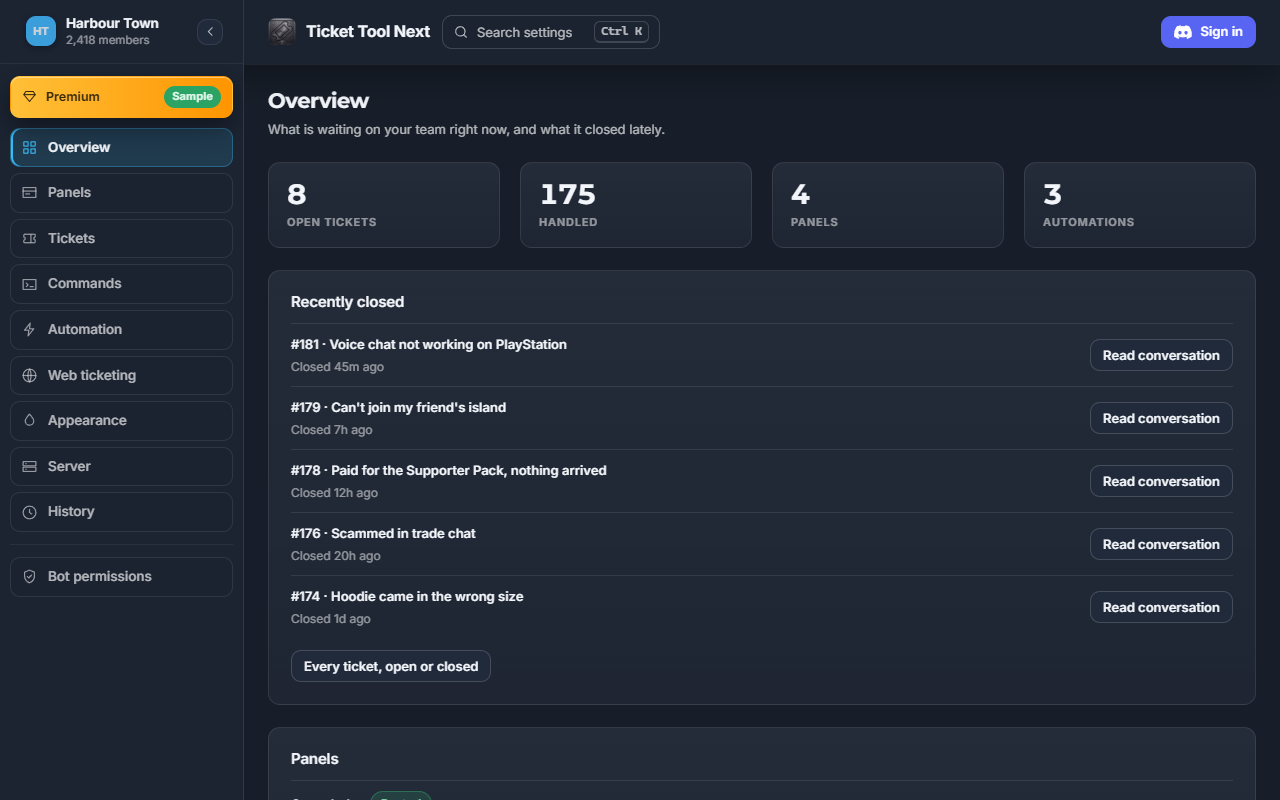
Open the dashboard
Signing in reads which servers you hold Manage Server or Administrator in, checked against Discord and never more than a minute old, so the list is exactly what you can already administer. The overview says what is still unset.
-
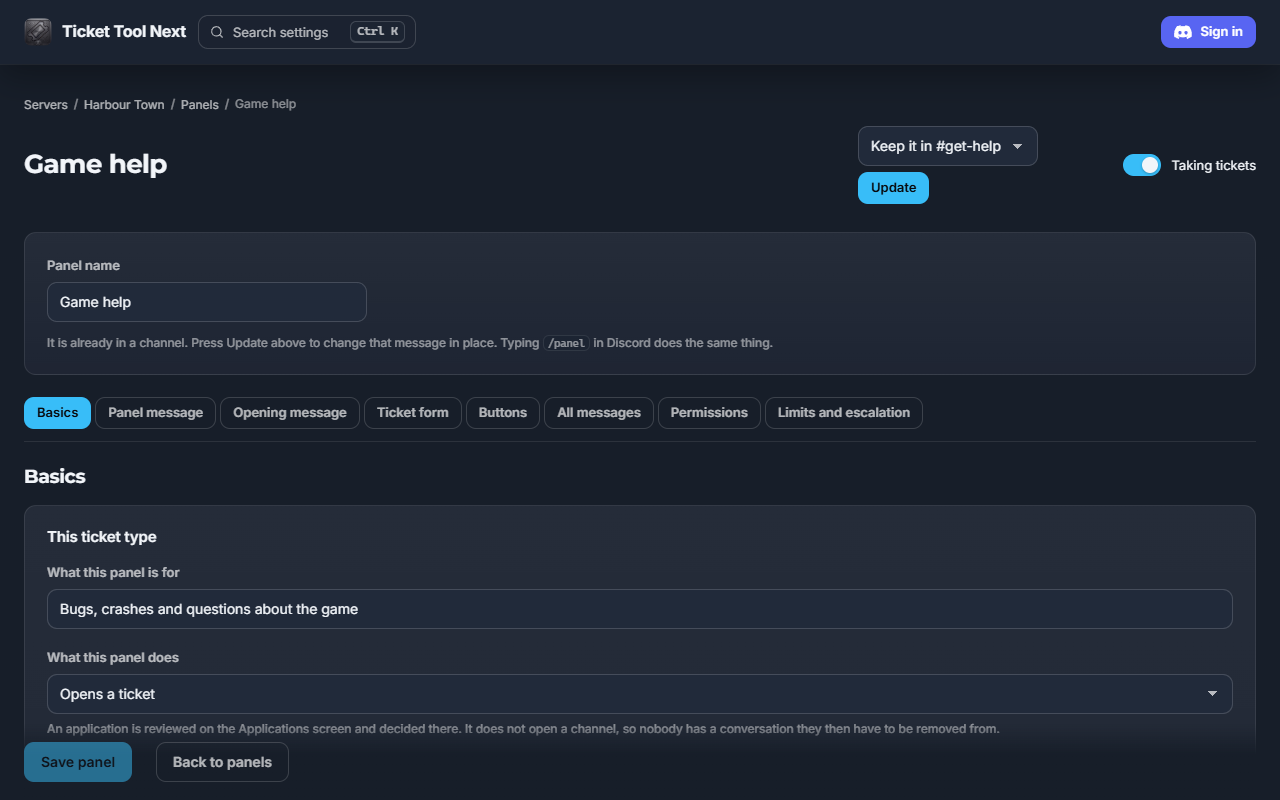
Build a panel
A panel is a ticket type. It owns the message people see, the button they press, the form they fill in, the category tickets land in, and who can handle them. A server can have as many as it likes, and one posted message can carry up to 25 of them.
-
Post it to a channel
Run
/panelin the channel you want it in, or post it from the Panels screen. Posting again edits the message already there rather than leaving a trail of dead panels.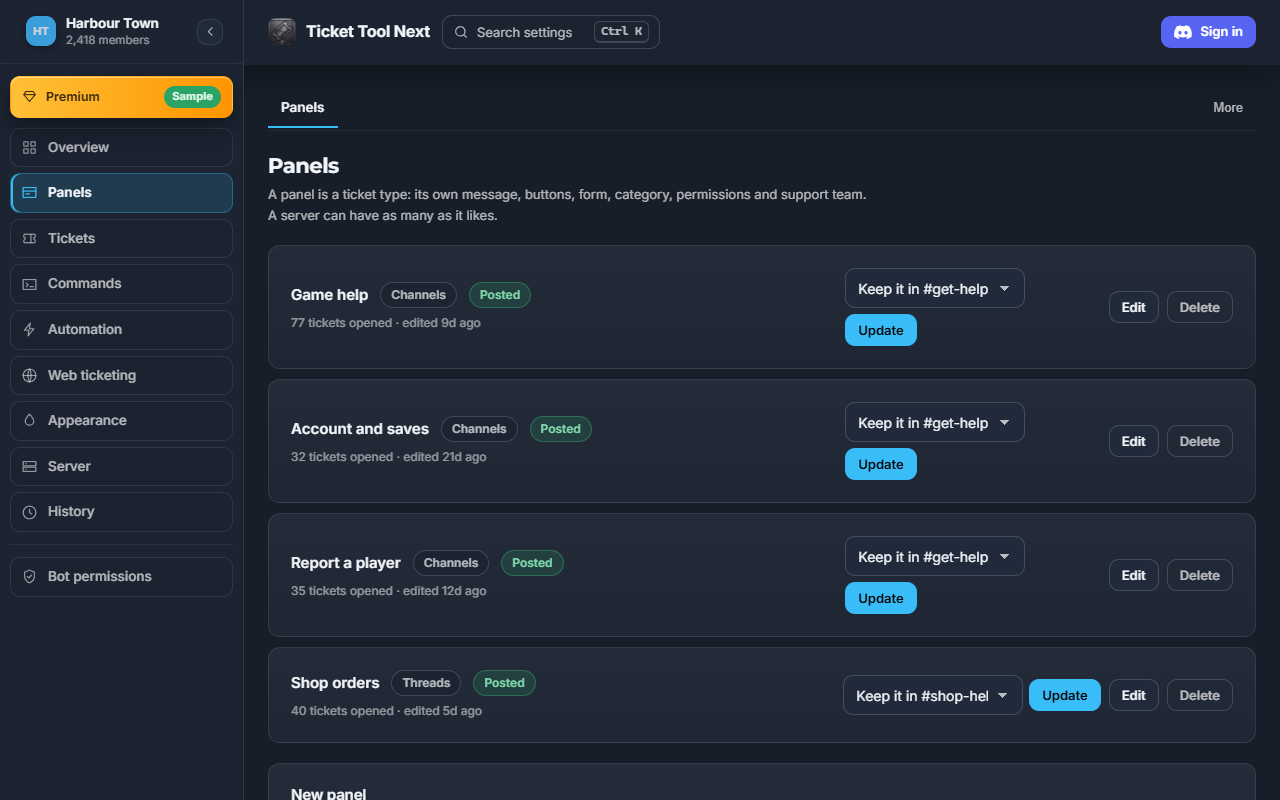


Ticket lifecycle
created → opened → closed → re-opened → deleted, with claimed and unclaimed running alongside as a separate axis.
Closed and deleted are deliberately different things. Closing denies the opener view of the channel, renames it and moves it to the closed category. The history is intact and it can be re-opened. Deleting removes the channel. The ticket record survives deletion on purpose: statistics, the audit trail and any transcript already taken all reference it, and removing the row along with the channel would silently rewrite last month's numbers.
Variables
Usable in any message, embed, channel name or custom command. Chain modifiers with a pipe:
{owner.username|upper|max:12}.
An unknown variable renders as nothing, never as its own name. A typo
that printed {owner.usrname} into a live support channel would look like the
bot is broken; printing nothing looks like a field that was not filled in. Substitution
is also single-pass, so a value that itself contains braces is not re-scanned. That is
what stops someone typing a role ping into a ticket reason and having it expand.
Panel editor
Every tab below is per panel, so a billing ticket and a bug report can look and behave nothing alike.
Messages
Thirteen points where the bot says something, each with an embed builder. Leave one alone and it uses the built-in wording.
| Message | When it is sent |
|---|---|
| Panel message | The panel itself, in a public channel |
| Ticket message | First message inside a new ticket |
| Created DM / Closed DM | Direct message to the opener, if DMs are on |
| Close question | The are-you-sure confirmation |
| Opened embed | Posted when a ticket is re-opened |
| Closed embed | Posted when a ticket is closed |
| Moderator embed | In the staff thread, where the opener cannot see it |
| Claim / Unclaim | When staff take or release a ticket |
| Transcript message | Alongside a delivered transcript |
| Delete message | Posted before deletion, so it lands in the transcript |
| Escalate message | When a ticket is handed to another panel |
All accept the variables above. A mention only pings from the message text, never from inside an embed, which is why each editor has a box for both.
Channel permissions
Nine targets, each a grid of allow, inherit and deny across twenty-two permissions. Inherit keeps whatever the role has server-wide. This is what makes a ticket private, and why the bot never asks for Administrator, which would bypass every row.
| Target | Applies |
|---|---|
| @everyone | Separately while open and while closed |
| Ticket owner | Separately while open and while closed |
| Support team | Separately while open and while closed |
| Additional roles | Separately while open and while closed |
| Claimed override | Layered on top once somebody claims it |
Untouched means the built-in private defaults. One rule cannot be switched off: unless you explicitly allow @everyone to view, it stays denied.
Automation and custom commands
Automation rules
A trigger and a list of actions, set on the Automations screen and stored as JSON. Seven of the ten triggers fire the moment they happen: created, closed, re-opened, claimed, unclaimed, close requested and claim requested. The owner-left trigger is picked up by a periodic sweep rather than the moment they leave. The interval watcher waits five minutes to thirty days, checks once or until it is stopped, and either restarts its timer when a message arrives or keeps it running.
{"window":3600,"source":"owner","fireOn":"absence","repeat":false,"timer":"restart","actions":[{"type":"close","delay":0}]}
Actions: close, delete, sendCommand,
stopAutomations, startAutomations. The last two let a human take
over a conversation a rule was about to close.
Custom commands
Run one with /custom. Three modes: strict matches the whole
text, wildcard understands * and ?,
regex puts named groups into the response. Strict beats wildcard beats regex.
{"trigger":"faq","match":"strict","response":"See {server.name} docs.","delivery":"channel"}
Delivery is channel, dm to whoever ran it, dmOwner to the ticket's owner, or ephemeral. Text after the
trigger becomes {answer.1} onwards, up to five.
Permissions
Discord shows an invite's permissions as a list with no explanation, and never reviews what an app asks for. The only gate is an admin pressing Authorize. So here is the whole list with a reason for each.
The bot has no gateway connection, so Discord never streams your server's messages to it. It reads the messages in its own ticket channels and threads. When someone uses a button or menu on one of its messages, or right-clicks a message and picks Open a ticket about this, Discord sends that message along with the interaction. Beyond those and the commands people send it, it never reads what anyone writes in any other channel.
Commands
| Command | Does | Who |
|---|---|---|
/ticket [reason] [user] | Opens a ticket. Naming a member opens it for them, and every rule that would stop them opening their own still applies | Anyone not blacklisted. Support team to name a member |
/claim | Takes ownership of the ticket | Support team |
/close [reason] | Closes it, keeping the history | Anybody who can see the ticket, or only the opener and the support team where Server settings says so |
/panel [name] | Posts a panel into this channel | Manage Server |
/ask [question] | Answers from what this server has told its AI assistant, naming the source, or offers a ticket with a person | Anyone |
/custom [text] | Runs one of this server's custom commands | Anyone |
/unclaim | Releases a claim so somebody else can take it | The claimer, or an admin |
/escalate | Hands the ticket to the panel its type escalates to | Support team |
/ping | Confirms the bot is awake | Anyone |
/add [user] [user2] to [user5] | Gives one person, or several at once, access to this ticket | Support team |
/remove [user] | Takes an individual grant away again | Support team |
/move [panel] | Hands the ticket to another panel and re-files the channel: new category, new team's access, new name | Support team |
/bulk [action] [inactive_days] | Closes or deletes many tickets at once. Reports what it would take and does nothing until you confirm that number | Manage Server, or an admin role |
/note [text] | Writes a private note on this ticket. The person who opened it never sees it | Support team |
/notes | Reads the private notes back | Support team |
/rename [name] | Renames the ticket's channel | Support team |
/transfer [user] | Hands the claim to another staff member | Support team |
/thread | Opens a staff-only thread, kept out of the transcript | Support team |
/closerequest [reason] [hours] | Asks the opener to confirm it can be closed. With hours, the ticket closes itself that long later unless somebody replies. A close they agreed to can carry its own closing DM | Support team |
/notify [message] | Direct-messages the opener that the team is waiting on them, naming the server and ticket, with a button back to the channel | Support team |
/open | Re-opens a closed ticket | Support team |
/delete | Deletes the channel for good | Support team |
/transcript | Produces a transcript now | Support team |
/priority [level] | Sets urgency, which decides the ticket's place in the queue | Support team |
/credits | Shows your credit balance and lets you top it up. Credit belongs to you, not to a server, so it works anywhere and spends anywhere | Anyone |
/boost | Moves this ticket up the queue, if the server offers it | Anyone in the ticket |
/link [provider] | Proves you own a Steam, Roblox or Twitch account | Anyone |
/unlink [provider] | Disconnects a linked account | Anyone |
/quicksetup | Creates a working category and panel in one step | Manage Server |
Two more live on Discord's right-click menu rather than the slash list: Open a ticket about this on any message, and Open a ticket with this user on any member.
AI answering
An add-on, with a 14-day free trial you start from the AI answering screen in your server's dashboard. Its answers are written by Connections AI from what you give it on that screen: a few paragraphs about your business, the documents you upload, and the web pages you list, which it reads along with the pages they link to on the same site. It answers from nothing else, and the Try it box on the same screen asks it a question the way a member would.
When a ticket opens, it greets the member, says a person can take over at any time, and asks what they need; a question typed into the ticket's form is answered straight away. After that it answers each message the ticket's owner sends and names the source it used. Tickets opened from the member portal and from your website get the same assistant. It goes quiet after 30 minutes without a message from the member.
It stops, and says so, when anyone from your team writes in the ticket, when the ticket is claimed or closed, when the member presses Talk to a person or asks for one, and when a message contains one of your "Always hand to a person" words. When nothing you gave it covers a question, it says so and leaves it for your team rather than guessing.
/ask puts a question to the same assistant anywhere in your server, with a
button to open a ticket when the answer was not enough.
Connect an AI assistant (MCP)
Ticket Tool Next runs an MCP server, so an AI assistant can work with the servers you manage. It acts as you, and every call asks Discord whether you still hold Manage Server in that server, the same check the dashboard makes.
1. Create a token
In the dashboard, open Access tokens from your
account menu, name the token after the place it will live, and copy it. The token starts
with ttn_pat_ and is shown once: only a hash of it is kept, so it cannot be
shown again. You can hold ten at a time.
2. Add the server to your client
The endpoint is https://tickettoolnext, over MCP's
Streamable HTTP transport. The token goes in the Authorization header, so
use a client that lets you set a request header, such as Claude Code, Cursor or VS Code.
Cursor's mcp.json and Claude Code's .mcp.json take this shape;
VS Code names the top key servers.
{
  "mcpServers": {
    "ticket-tool-next": {
      "type": "http",
      "url": "https://tickettoolnext.lunarwerx.com/api/mcp",
      "headers": { "Authorization": "Bearer ttn_pat_your_token" }
    }
  }
}
The same server added from Claude Code's command line:
claude mcp add --transport http ticket-tool-next https://tickettoolnext.lunarwerx.com/api/mcp --header "Authorization: Bearer ttn_pat_your_token" A file that holds a token is a password. Keep it out of version control.
What the assistant can do
| Tool | Does |
|---|---|
list_servers | Lists the servers where you hold Manage Server, and whether the bot is in each |
list_tickets | Lists a server's tickets, filtered to open, closed or all |
get_ticket | Reads one ticket's recent messages, and its transcript once it is closed |
list_panels | Lists a server's panels |
read_settings | Reads one settings section |
reply_to_ticket | Posts a reply in the ticket under your name, labelled via assistant |
close_ticket | Closes a ticket through the same close path as Discord, transcript included |
Each tool runs the same API route the dashboard and the member portal use, with the same checks. You can make up to 60 calls a minute, counted across all your tokens together.
Revoke or renew a token
Press Revoke next to the token on the Access tokens screen. The next call made with it is refused. A token acts with the Discord sign-in you had when you created it. If that sign-in expires and cannot be refreshed, calls are refused with a message that says so; press Renew to give the token your current sign-in without changing the token itself. Every token stops working 90 days after you create it, so make a new one then.
Webhooks
To have ticket events sent to your own app, open Integrations in the dashboard, paste the address your app gave you, and switch on the events you want.
Events
| Event | Sent when | Payload |
|---|---|---|
create | A ticket opens | ticket, openedBy |
close | A ticket closes | ticket |
delete | A ticket is deleted | ticket, by |
claim, unclaim | Staff take or let go of a ticket | ticket, by |
rename | A ticket channel is renamed | ticket, name, by |
transcript | A transcript is saved | ticket |
ticket holds the ticket's id and number, and its
channelId on every event but claim and unclaim. openedBy and
by are Discord user ids. name is the name as staff typed it;
Discord may lowercase it and swap spaces for dashes.
What arrives
One POST per event, with a JSON body. firedAt is a Unix time
in milliseconds.
{
  "event": "rename",
  "guildId": "123456789012345678",
  "payload": {
    "ticket": { "id": "q3Xk9mPz7Lr2Vt8wYb1NcA", "number": 17, "channelId": "234567890123456789" },
    "name": "billing-question",
    "by": "345678901234567890"
  },
  "firedAt": 1790000000000
}
If you fill in the secret key field, its text is sent as the Authorization
header as you typed it, so write Bearer in front yourself if your
app expects it.
Limits
The address must start with https://. Each send waits up to 5 seconds for
an answer and does not follow redirects. A send that fails is not retried, and the ticket
action goes ahead either way.
When it goes wrong
A slash command does not appear
Global commands take up to an hour to propagate, which looks exactly like a bug and has cost people entire afternoons. Register to a single server while testing and it appears instantly.
"I do not have permission to create channels here"
The bot's role is missing Manage Channels, or a category overwrite is denying it. A server admin can edit the bot's auto-created role, but only within their own role hierarchy, since they cannot grant what they do not hold themselves.
The bot's banner keeps disappearing
Discord's developer portal never loads an existing banner back into its upload control, so every Save on that page submits the field empty and deletes it, including saves for something else entirely. Set the banner from the dashboard, which sends only the fields you actually named.
Sign-in returns "invalid_state"
The sign-in did not start on this page, or it sat unfinished for more than fifteen minutes. Start it again from the dashboard. On your own application, it also means the redirect URL registered in the portal does not match exactly: a trailing slash is a different URL to Discord.